
Debtors
Debtors are individuals or entities that owe money to you.
This guide will help you manage your debtors effectively.
Creating a Debtor
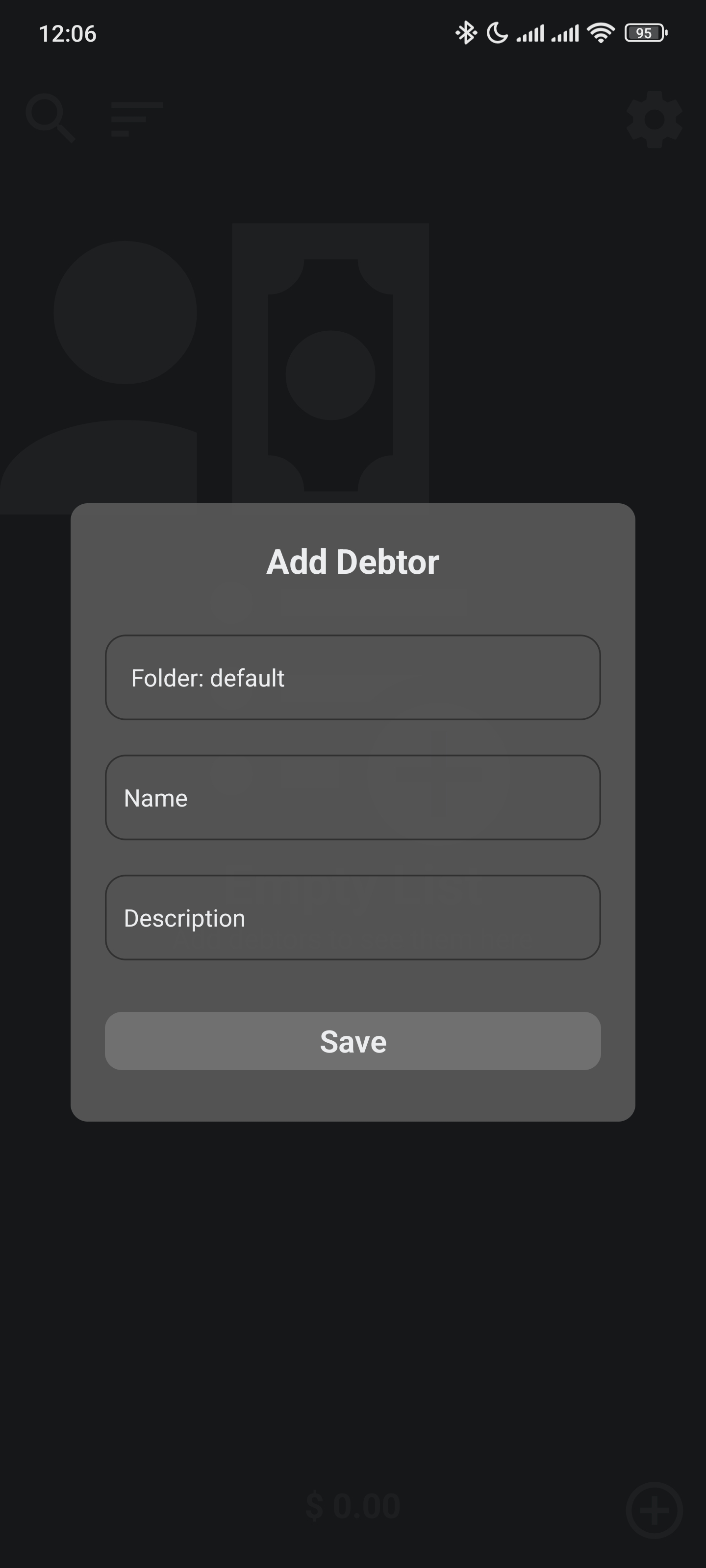
To create a debtor, tap the plus icon from the debtors screen:

Fill the debtor's name and description, and assign it to a Folder if desired.
After filling in the details, tap the save icon to add the debtor.
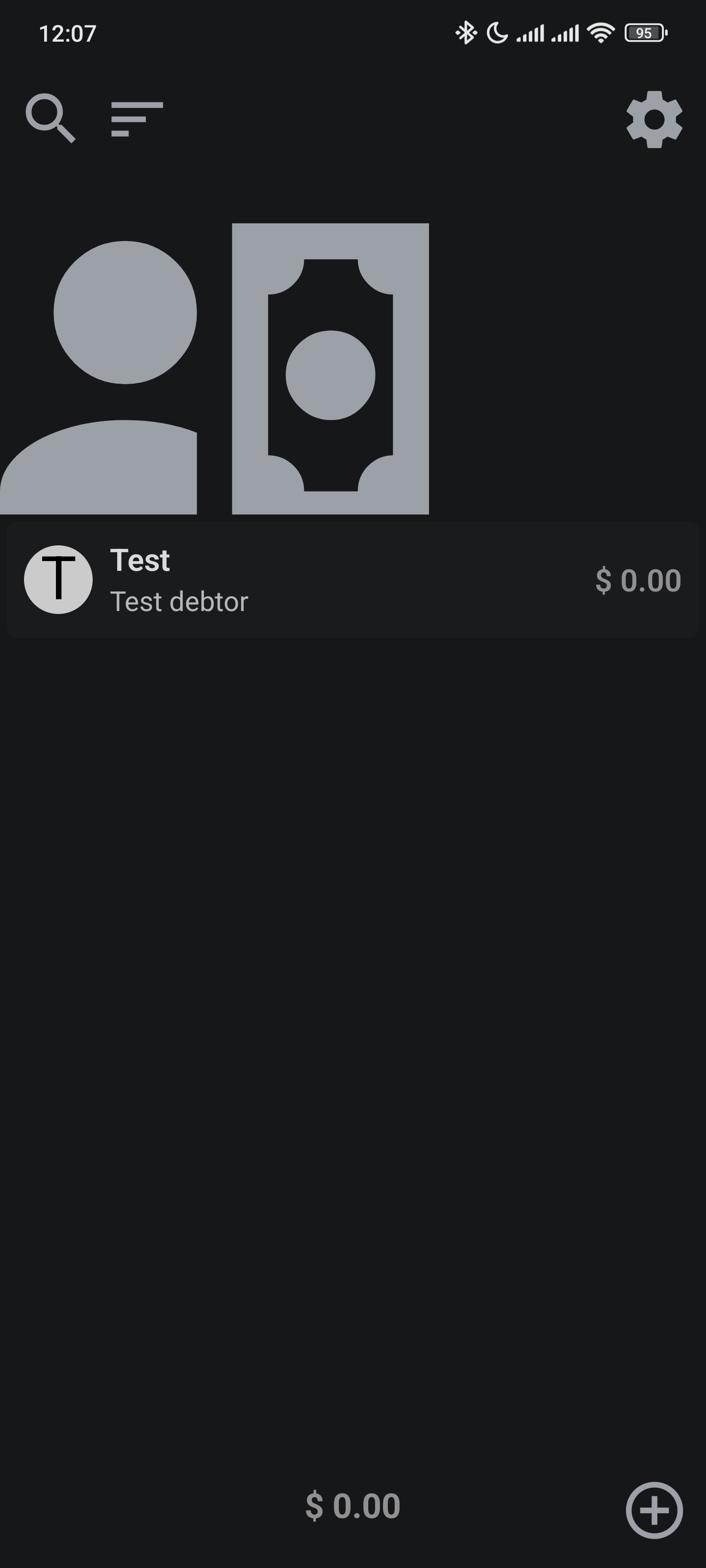
Once added, the debtor will appear in the list of debtors.
Editing and Deleting
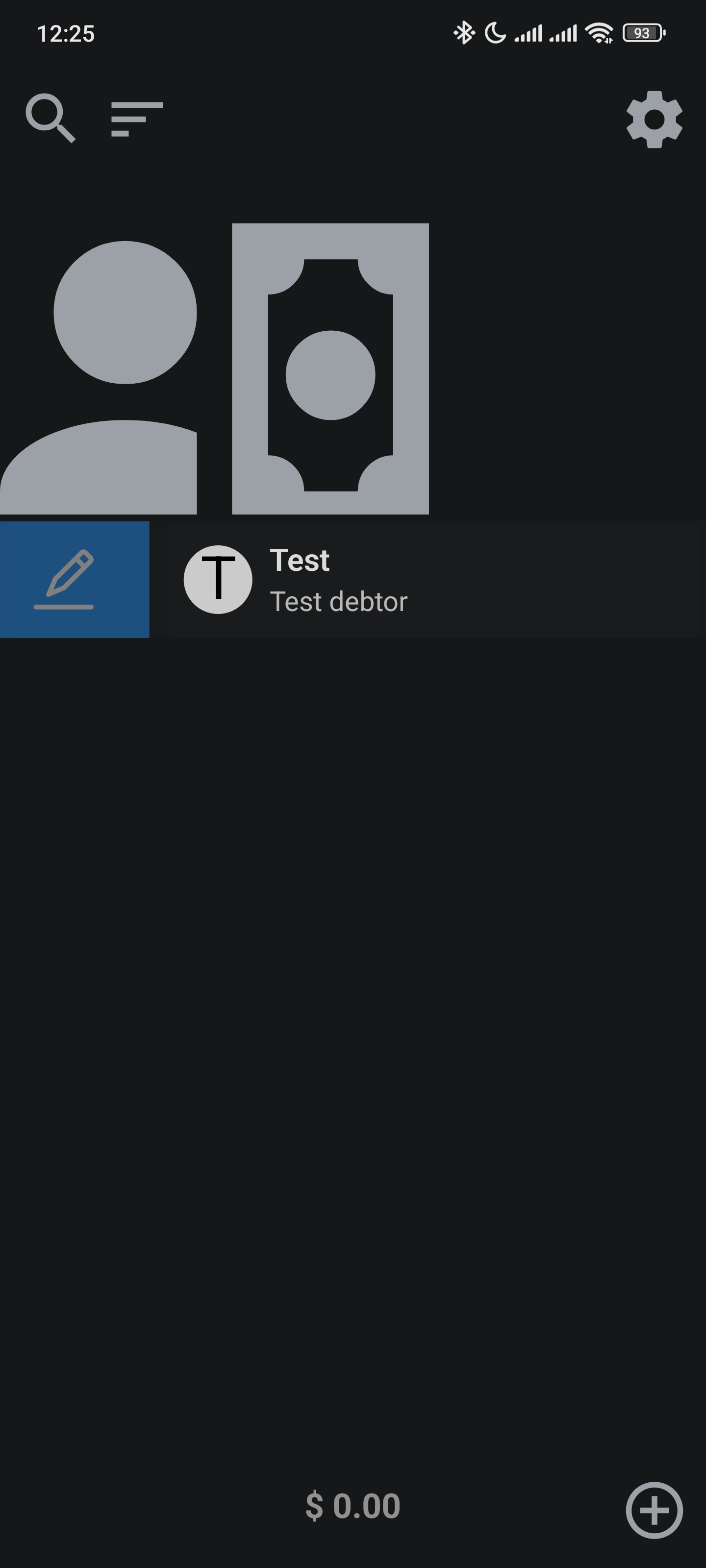
To edit a debtor, swipe right on the debtor's entry in the list:
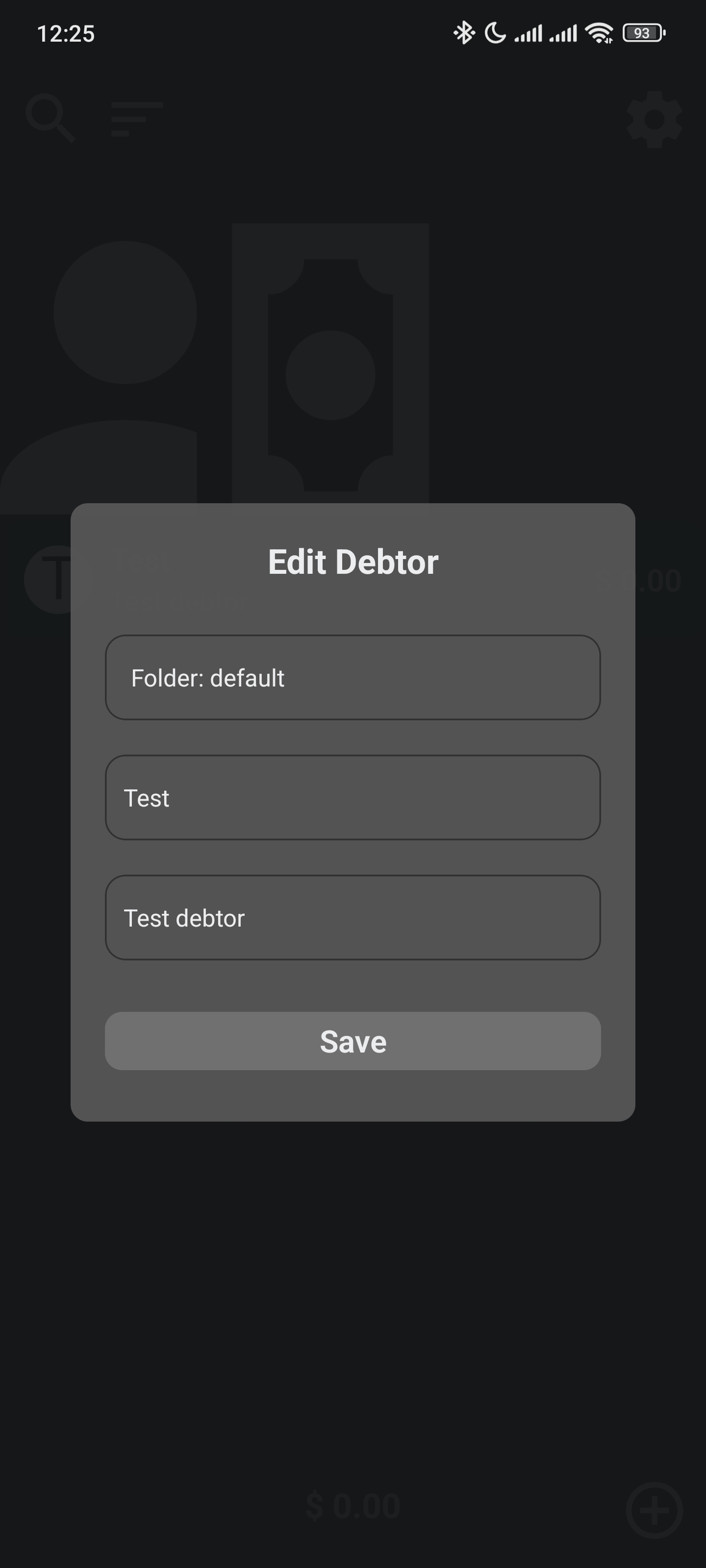
Then you can modify the name, description, and Folder assignment:
To delete a debtor, swipe left on the debtor's entry in the list:
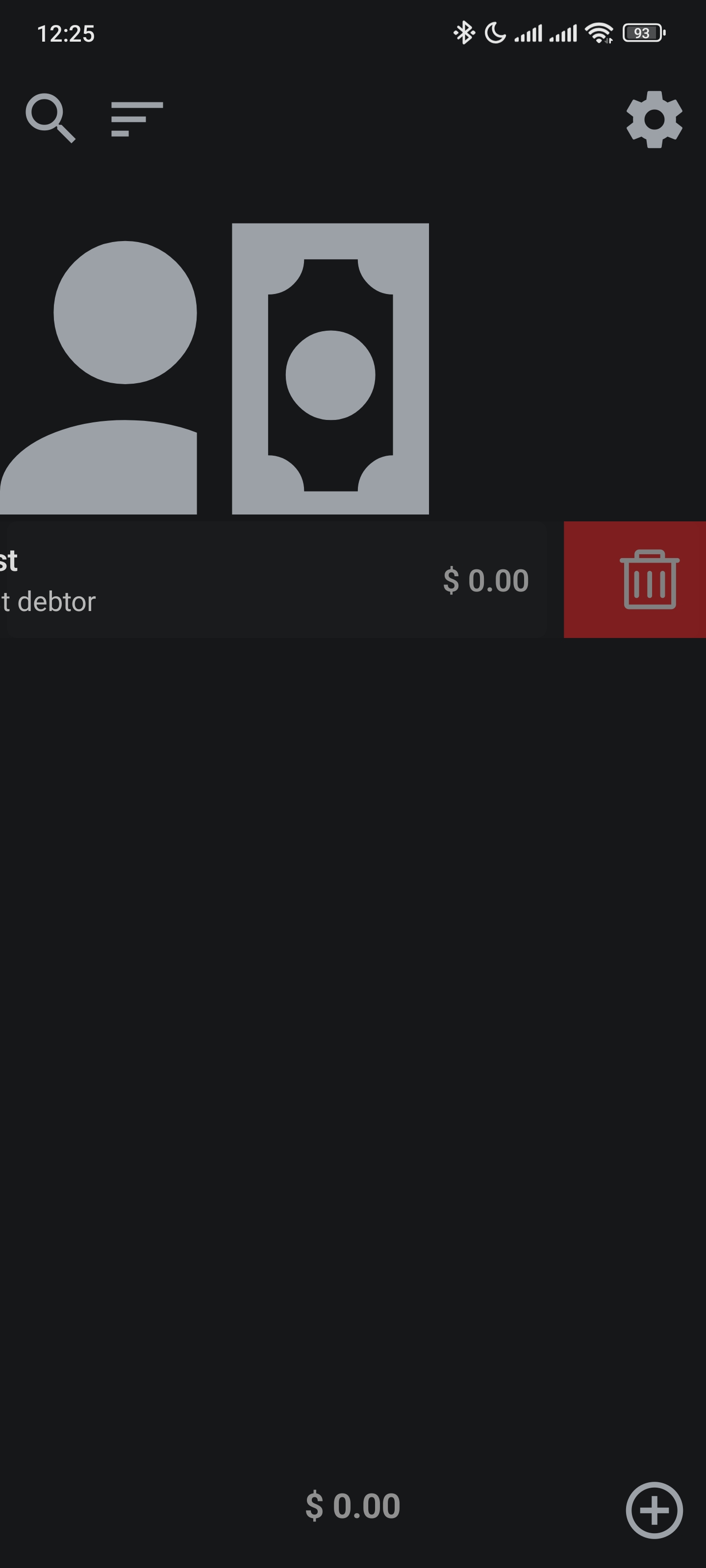
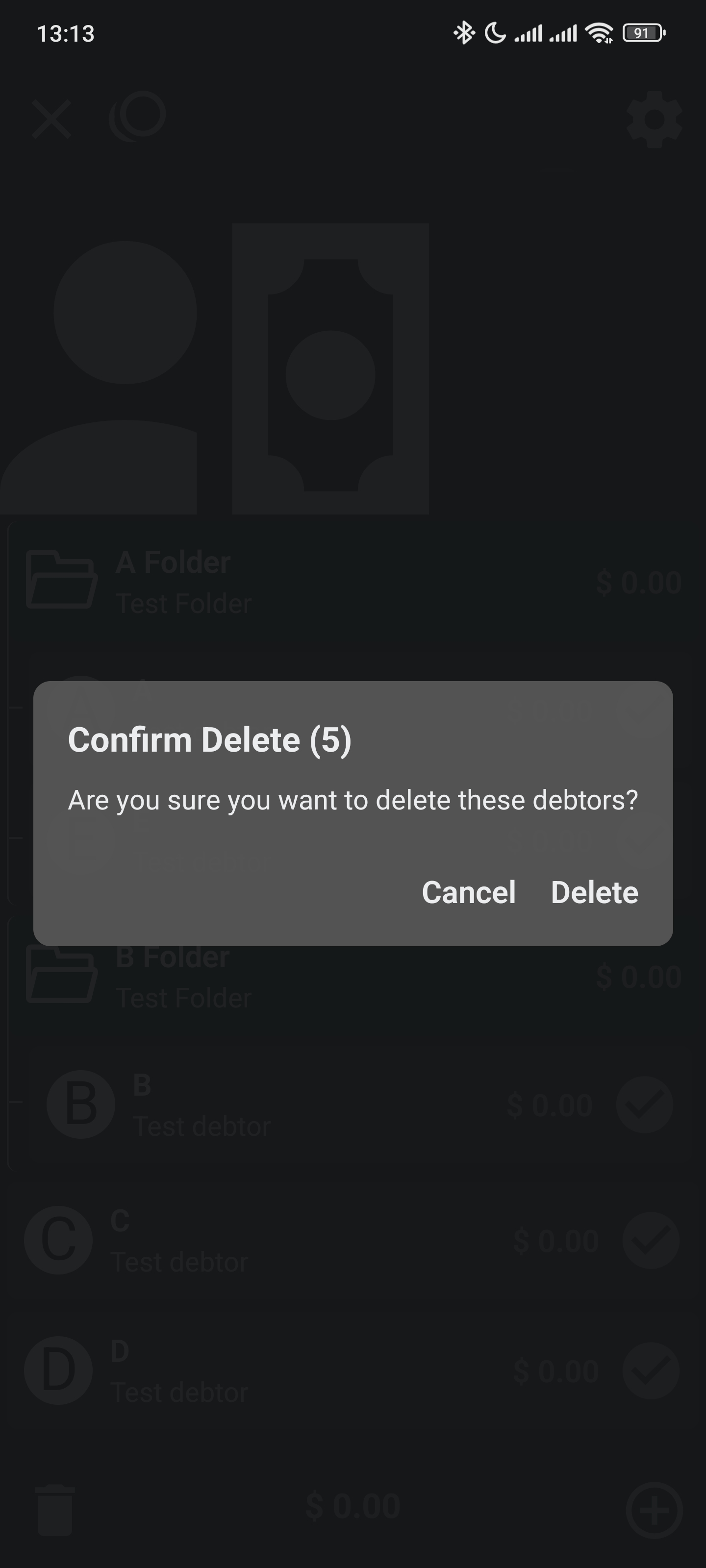
You will see a dialog where you can confirm the deletion:
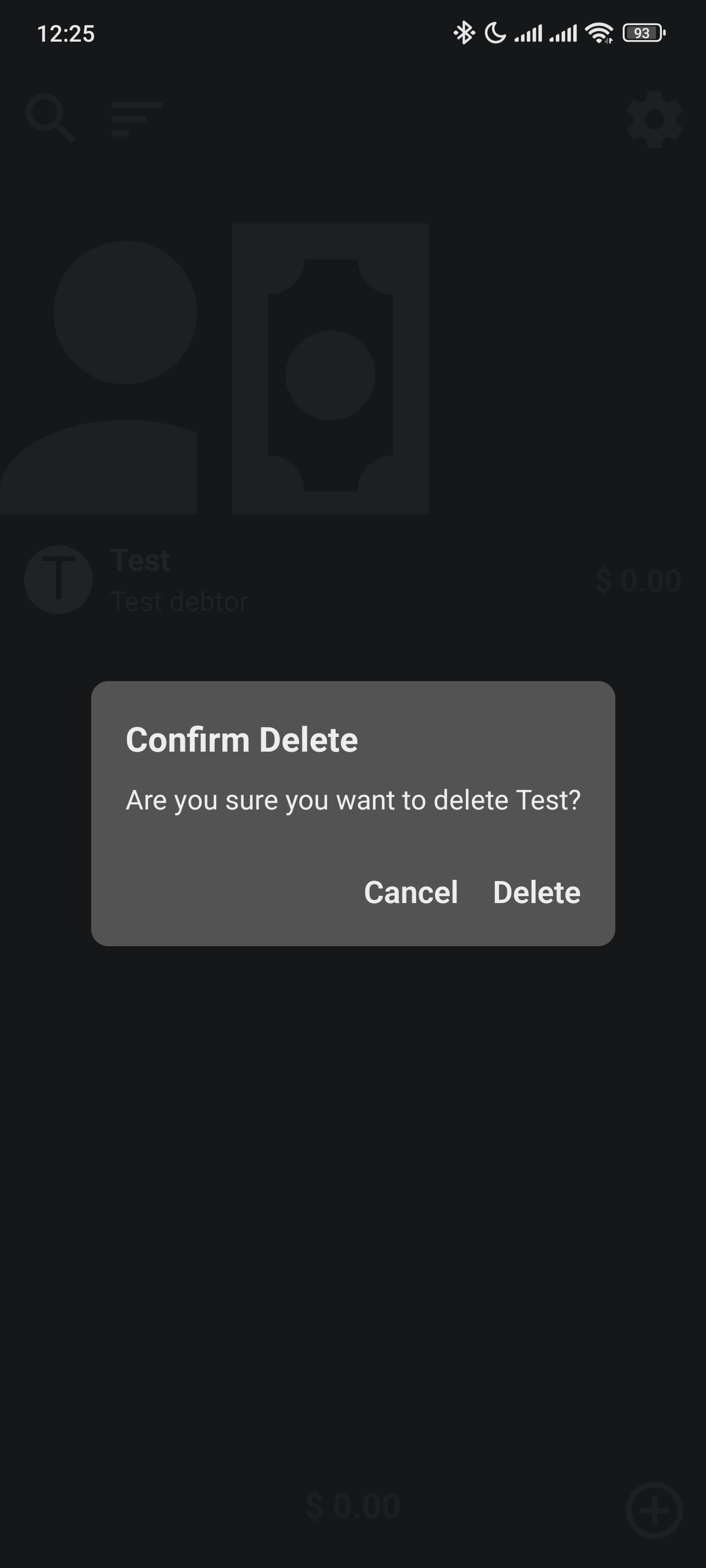
Same goes for folders and debtors within folders.
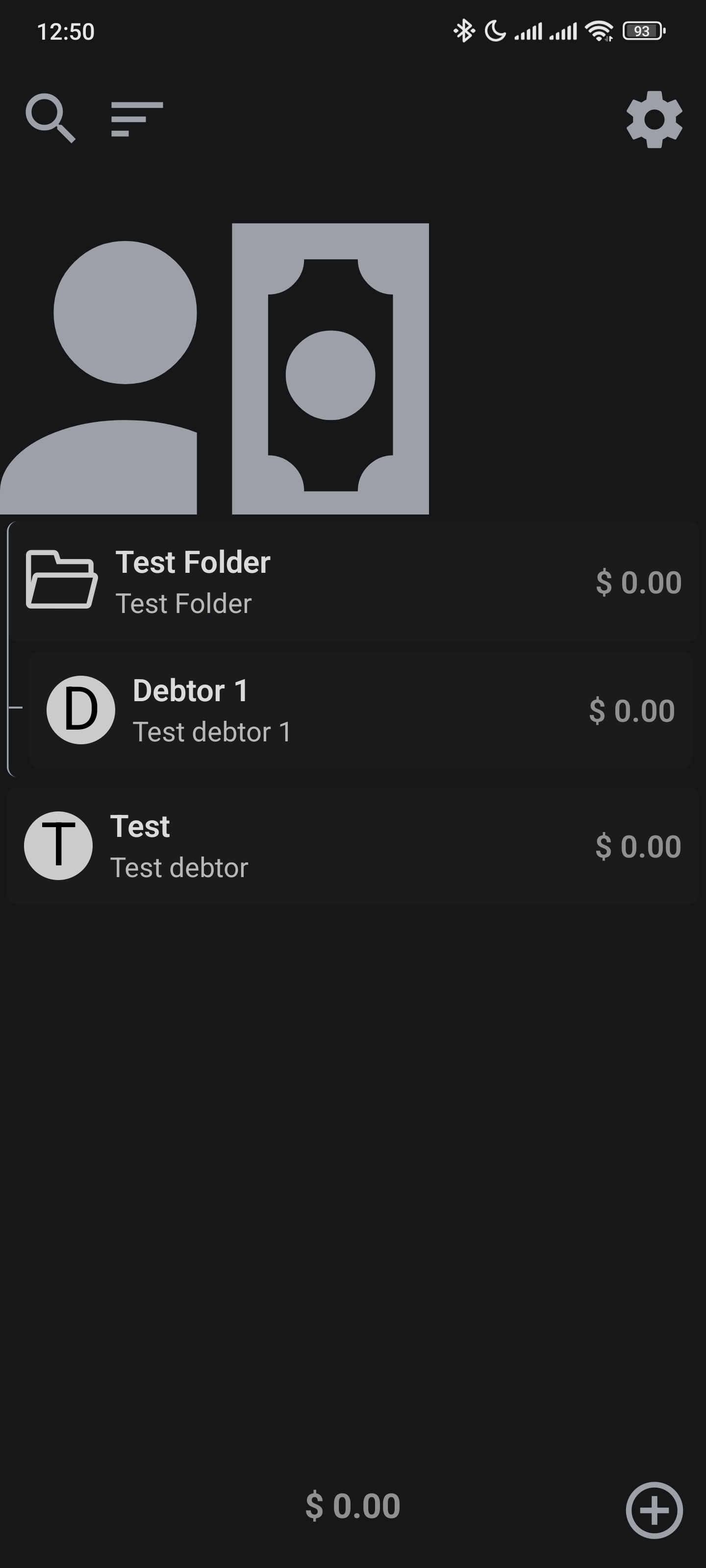
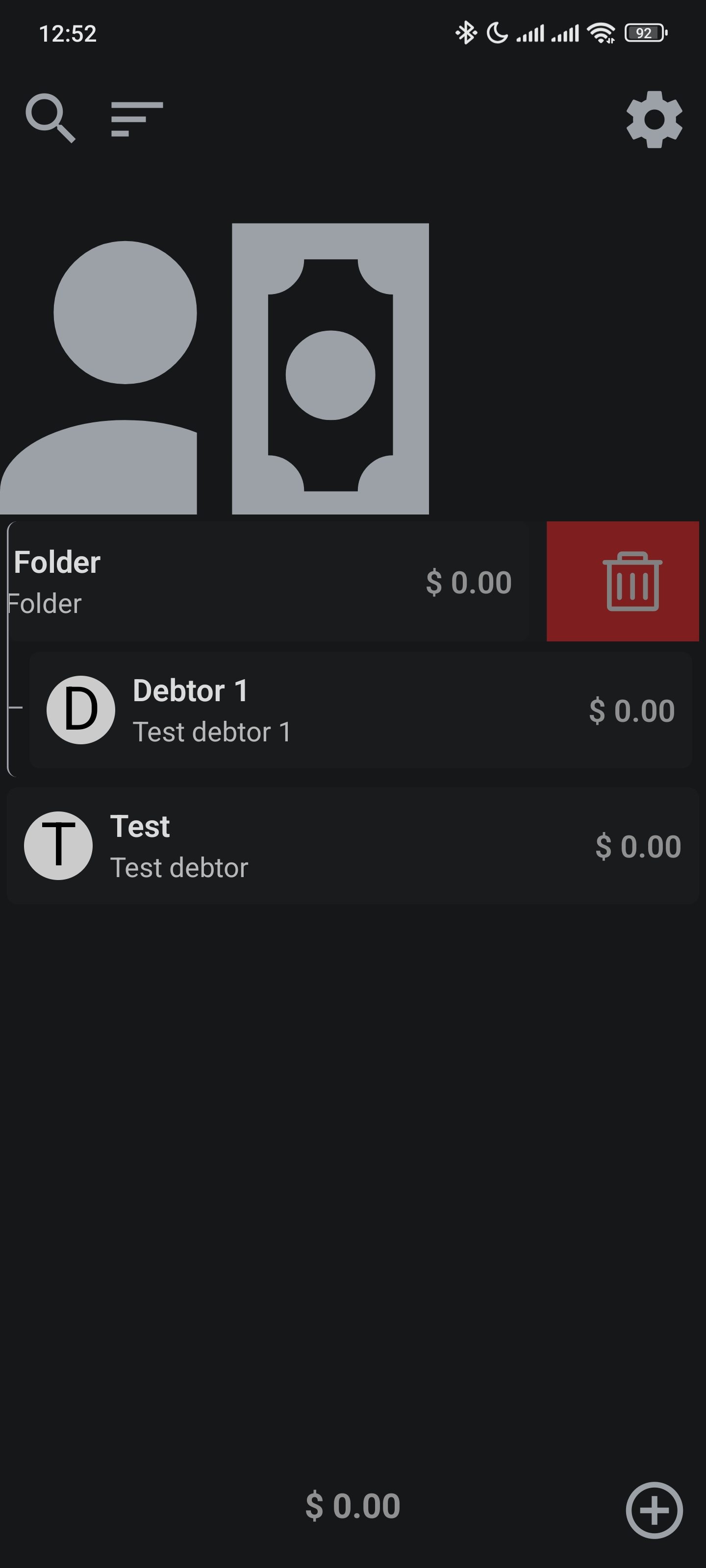
You can edit and delete them in the same way.

Deleting a folder will delete the debtors within it.
Filtering
Once you have added debtors, you can filter using the search bar:
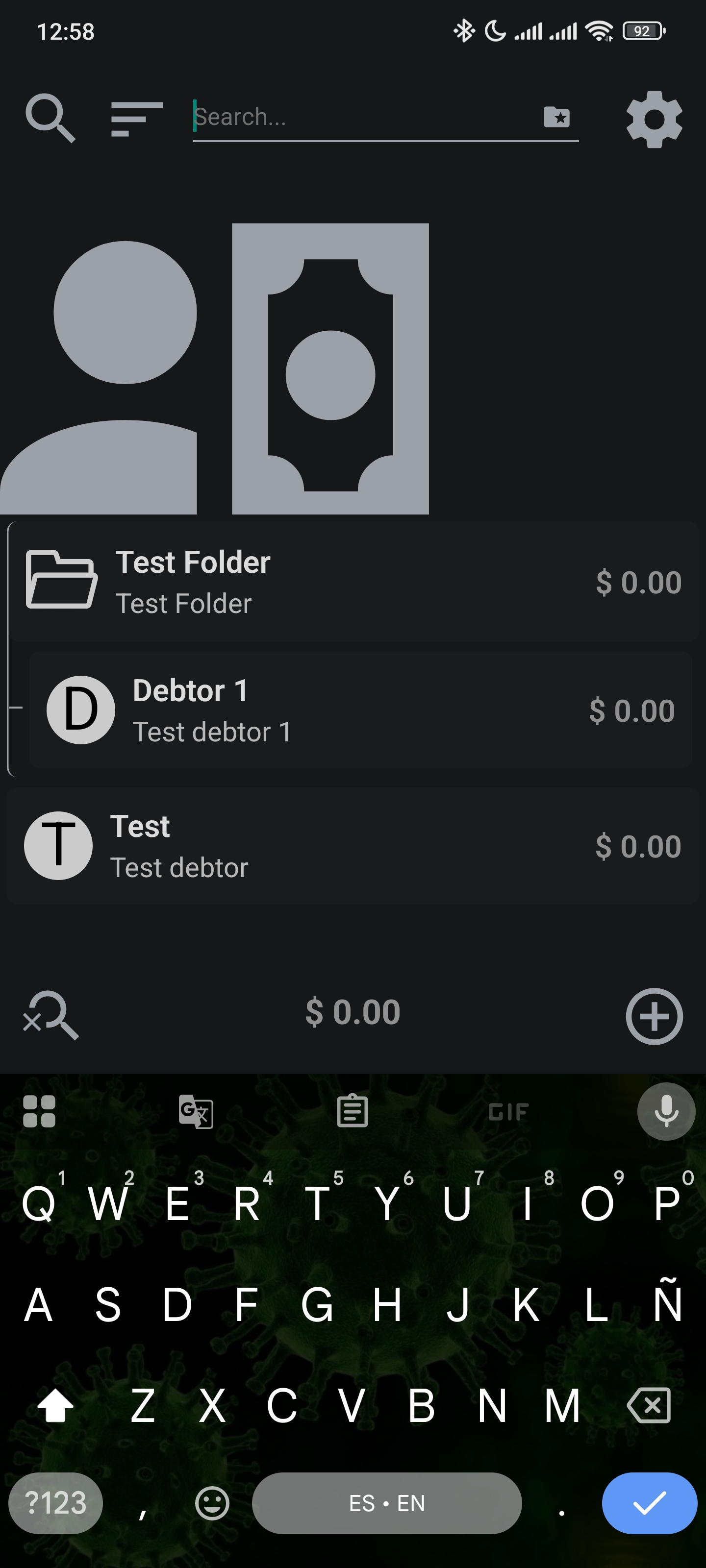
You can filter by debtor name:

You can also filter by folder name after selecting the folder icon:
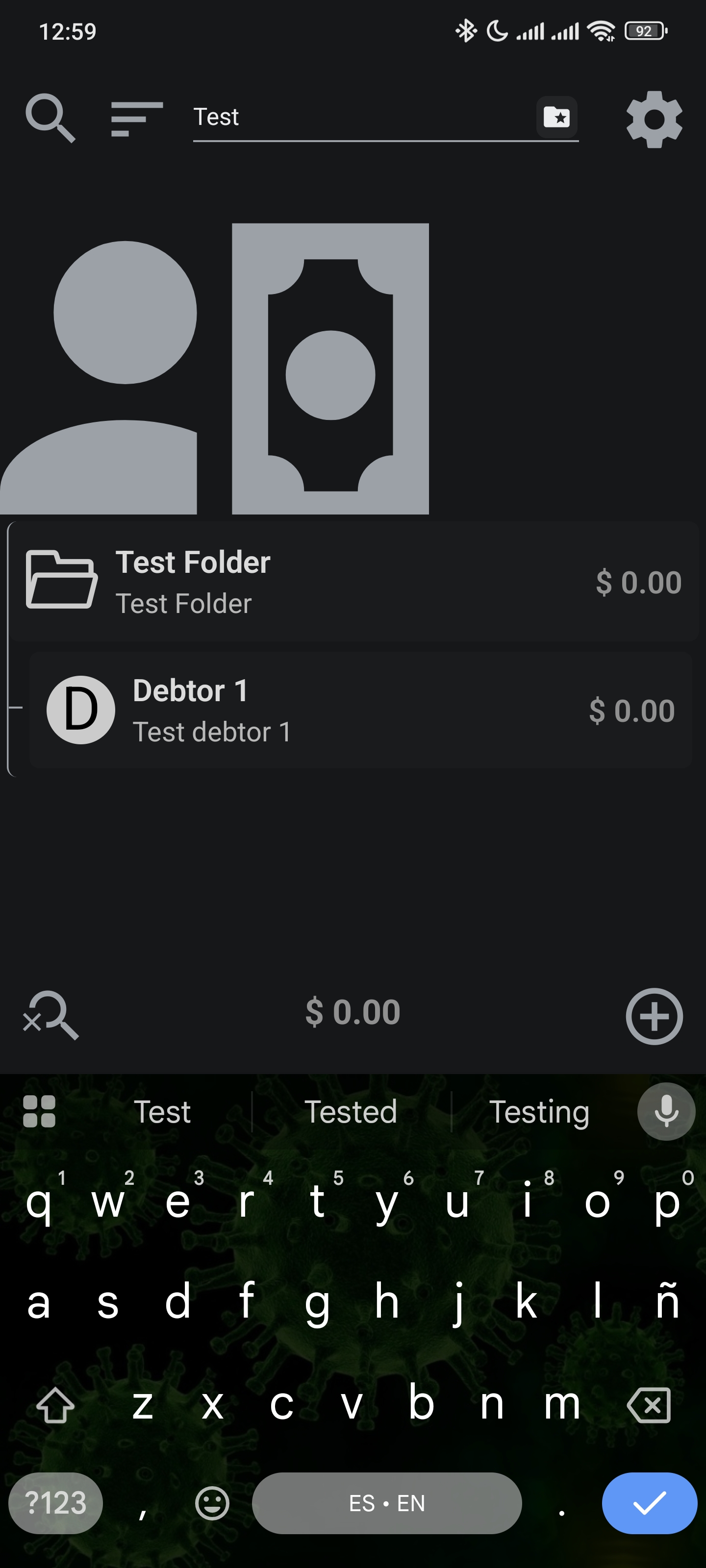
You can always reset the filter by tapping the clear search icon at the left bottom.
Sorting
You can sort by name or total debt by tapping the sort icon:
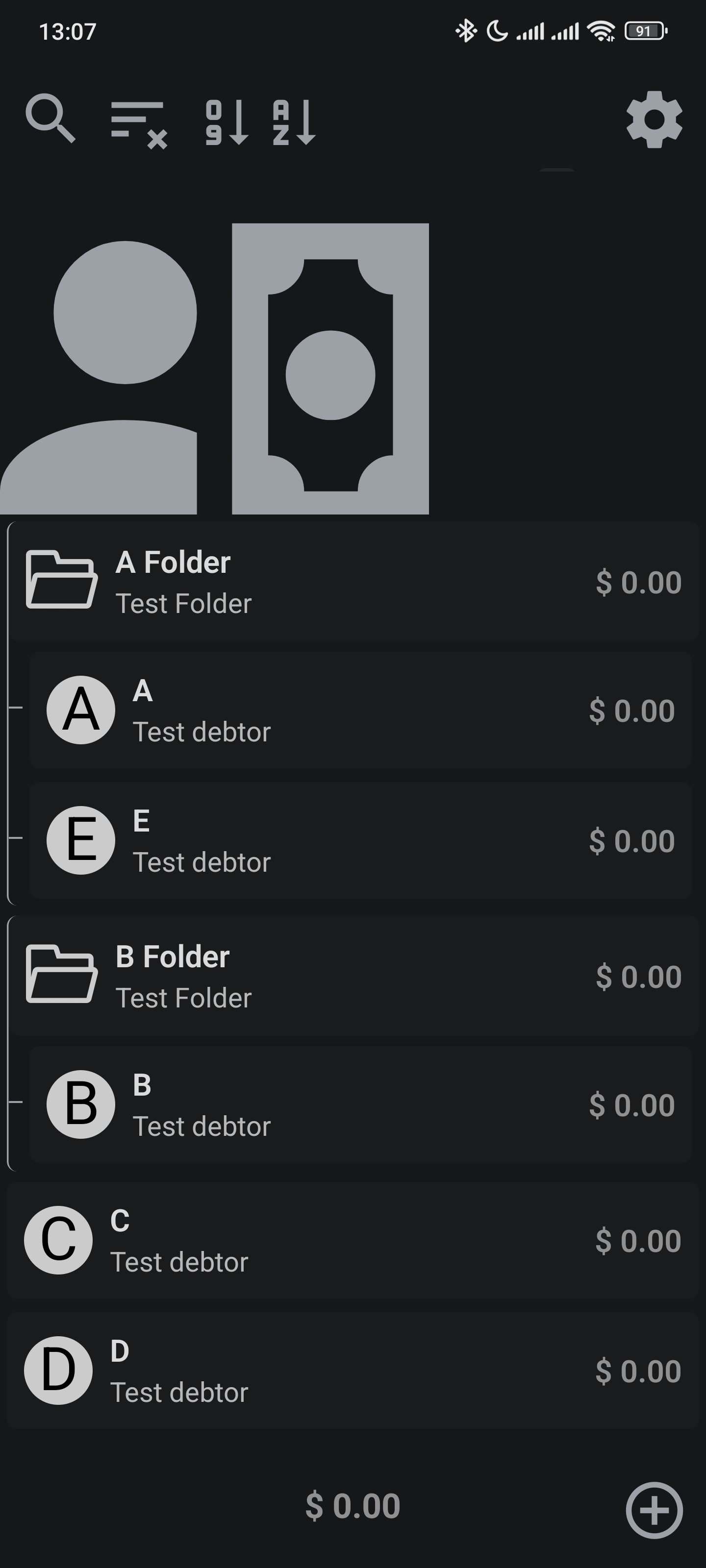
In this case we are sorting by name A-Z:
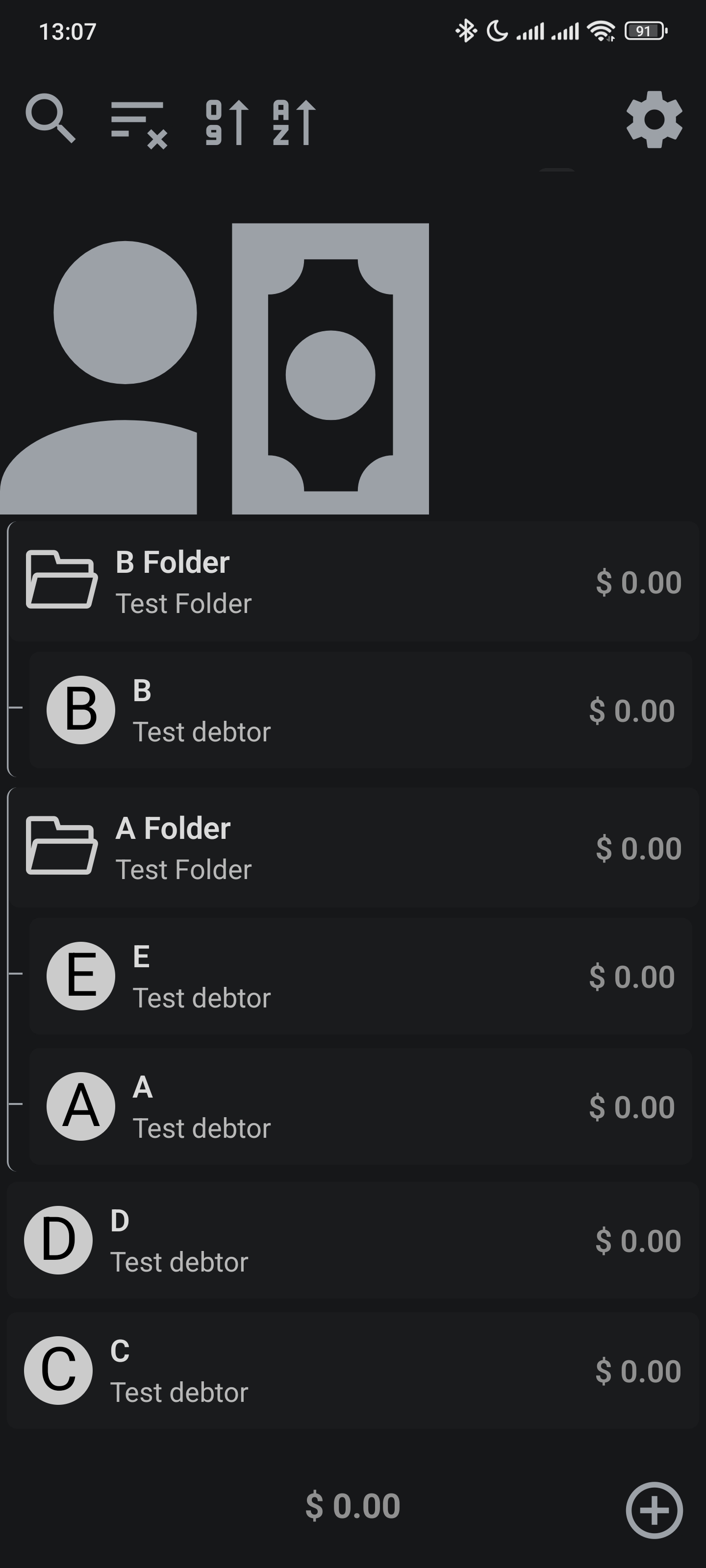
As you can see, folder are always at the top of the list.
Note: Same Applies for sorting by total debt.
Multi Selection
You can select multiple debtors by long pressing on a debtor's entry in the list:
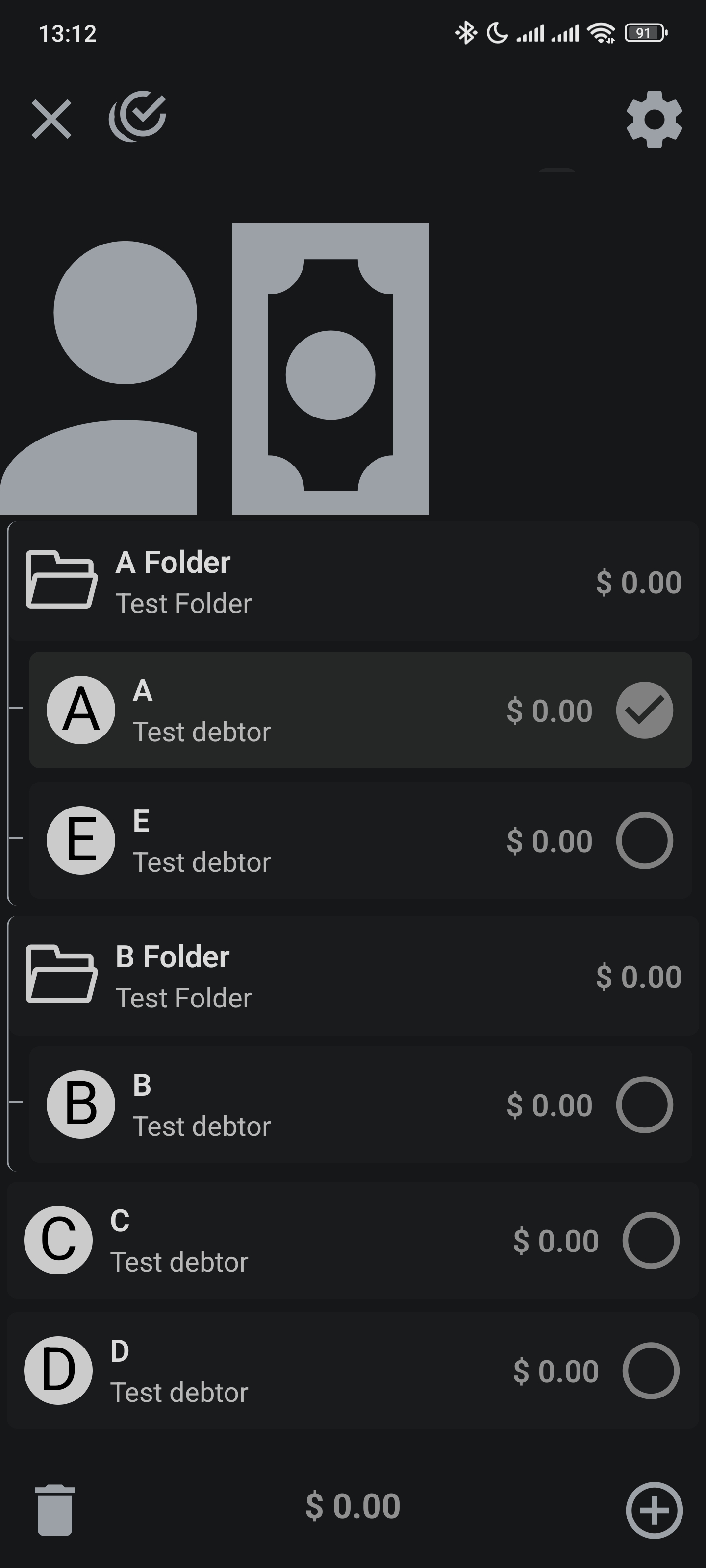
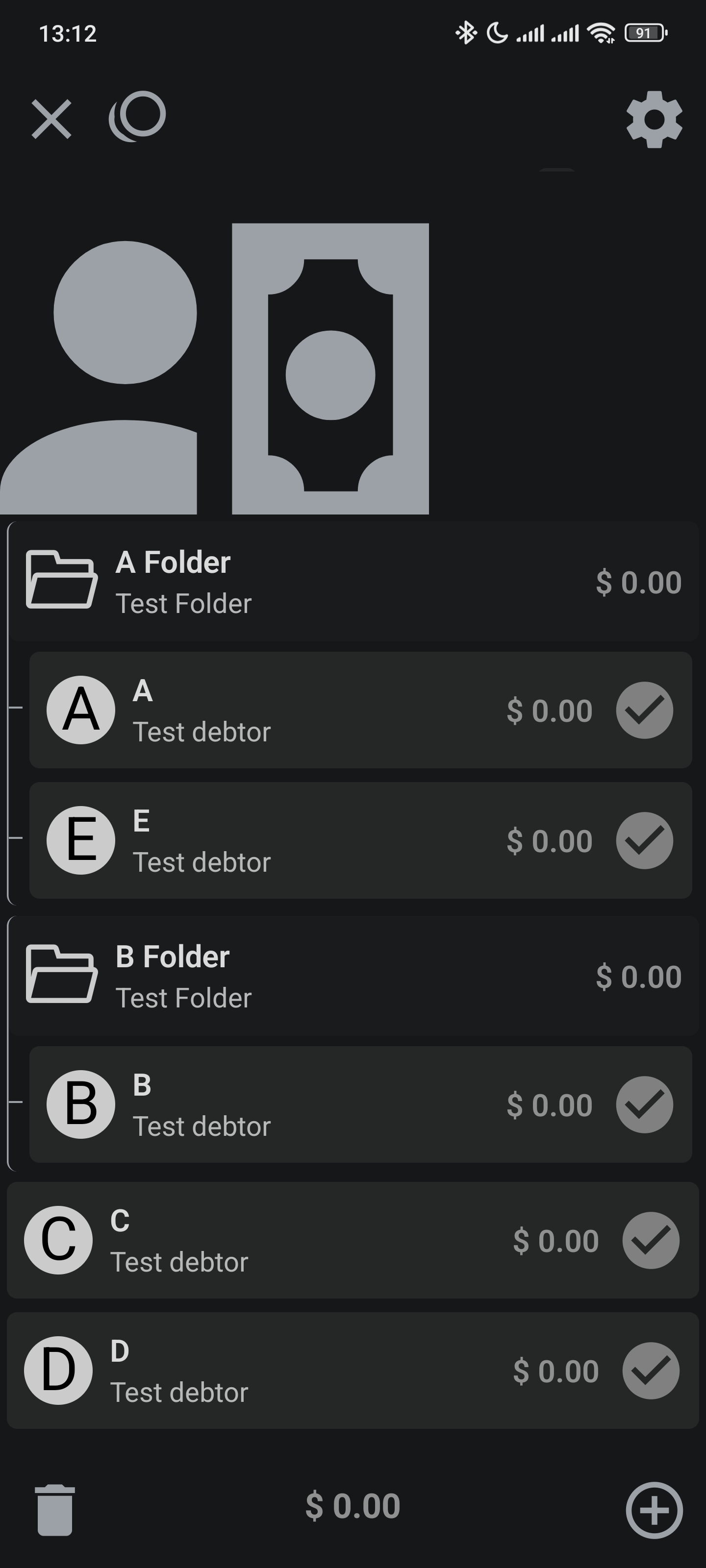
You can select all the debtors by tapping the select all icon:
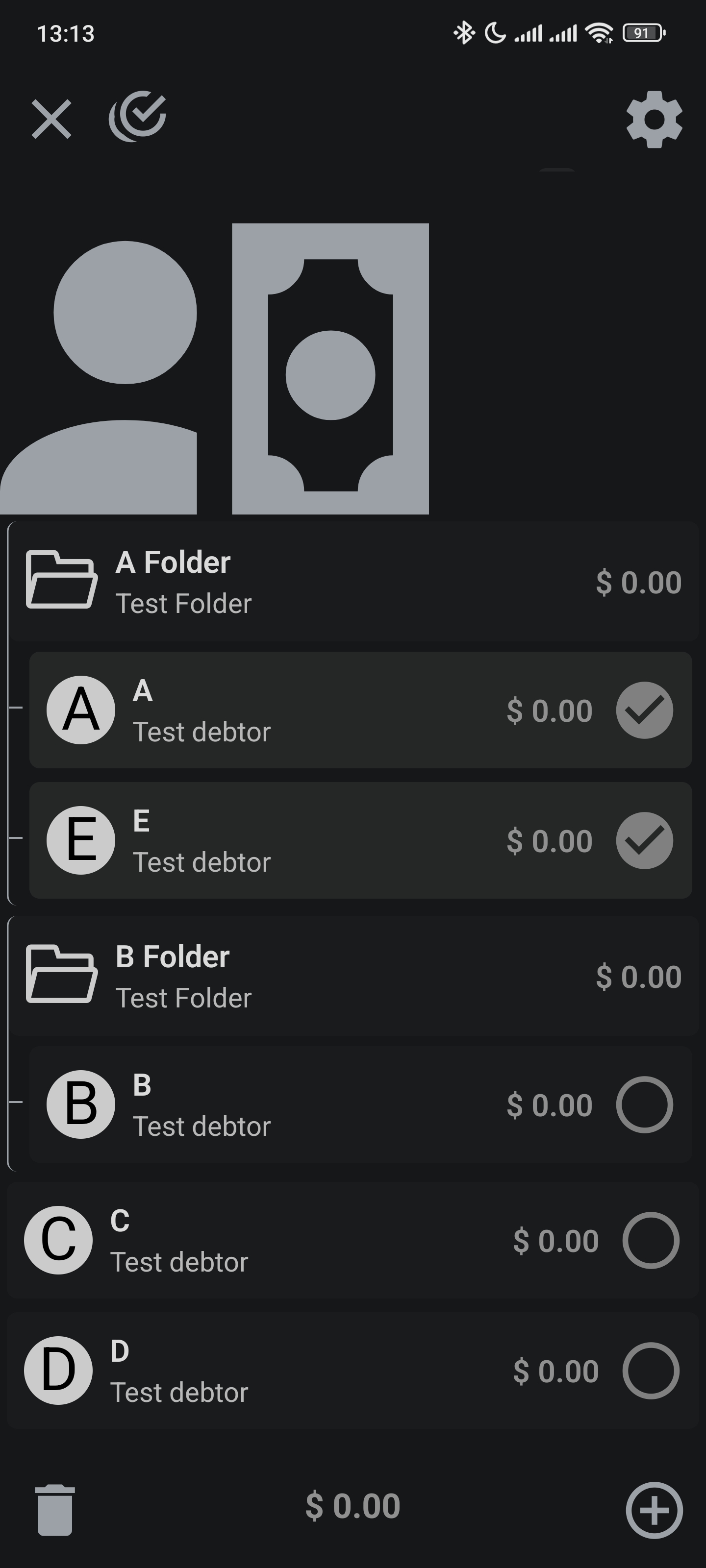
When long pressing a folder, you can select all the debtors within it:
You can also delete tapping the delete icon at the bottom left:
Continue to the next page to learn more about Movements